
Manage passwords effectively is crucial for online security, a password manager simplifies this process by storing and organizing your passwords, generating strong passwords, and automatically filling in login details. For both industry professionals and everyday users, using a password manager can significantly reduce the risk of security breaches and enhance your overall online safety.
In today’s digital age, managing numerous passwords can be a daunting task. Forgetting passwords, using weak passwords, and the risk of security breaches are common issues. This guide will walk you through the process of manage passwords with a password manager, a tool designed to securely store and manage your passwords, ensuring a seamless and secure online experience.
Step-by-Step Instructions
Step 1: Choose a Password Manager
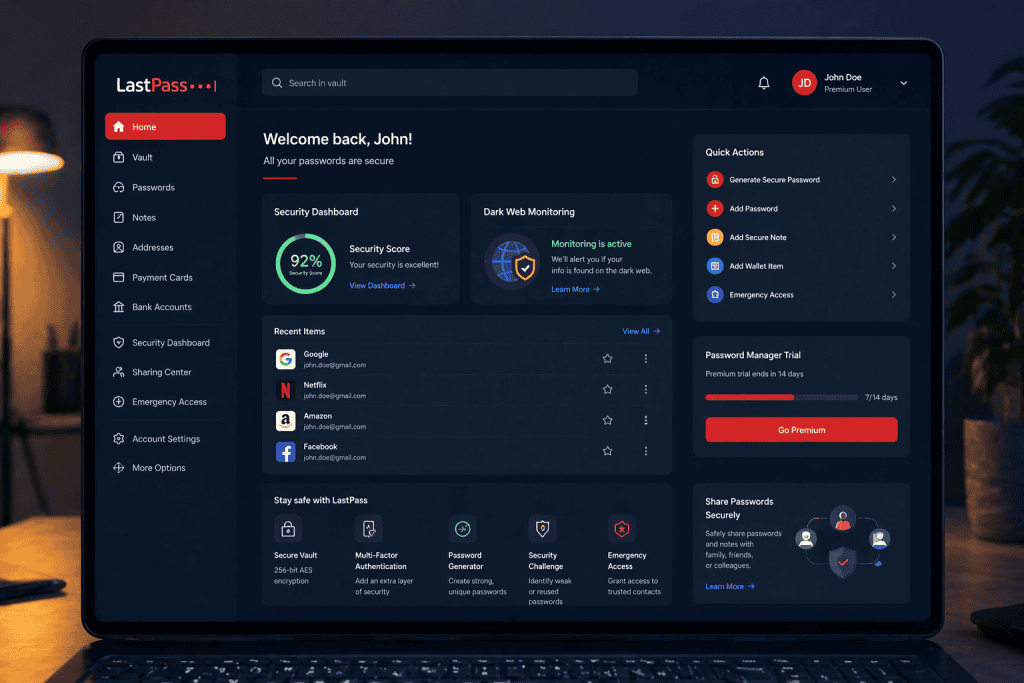
Select a password manager that suits your needs. Popular options include LastPass, 1Password, and Dashlane. Consider factors such as user interface, security features, compatibility with your devices, and pricing.
Step 2: Download and Install the Password Manager
Visit the official website of your chosen password manager and download the appropriate version for your device (Windows, macOS, iOS, Android). Follow the installation instructions provided. Ensure you have a stable internet connection during the download and installation process to avoid any interruptions.
Step 3: Create an Account
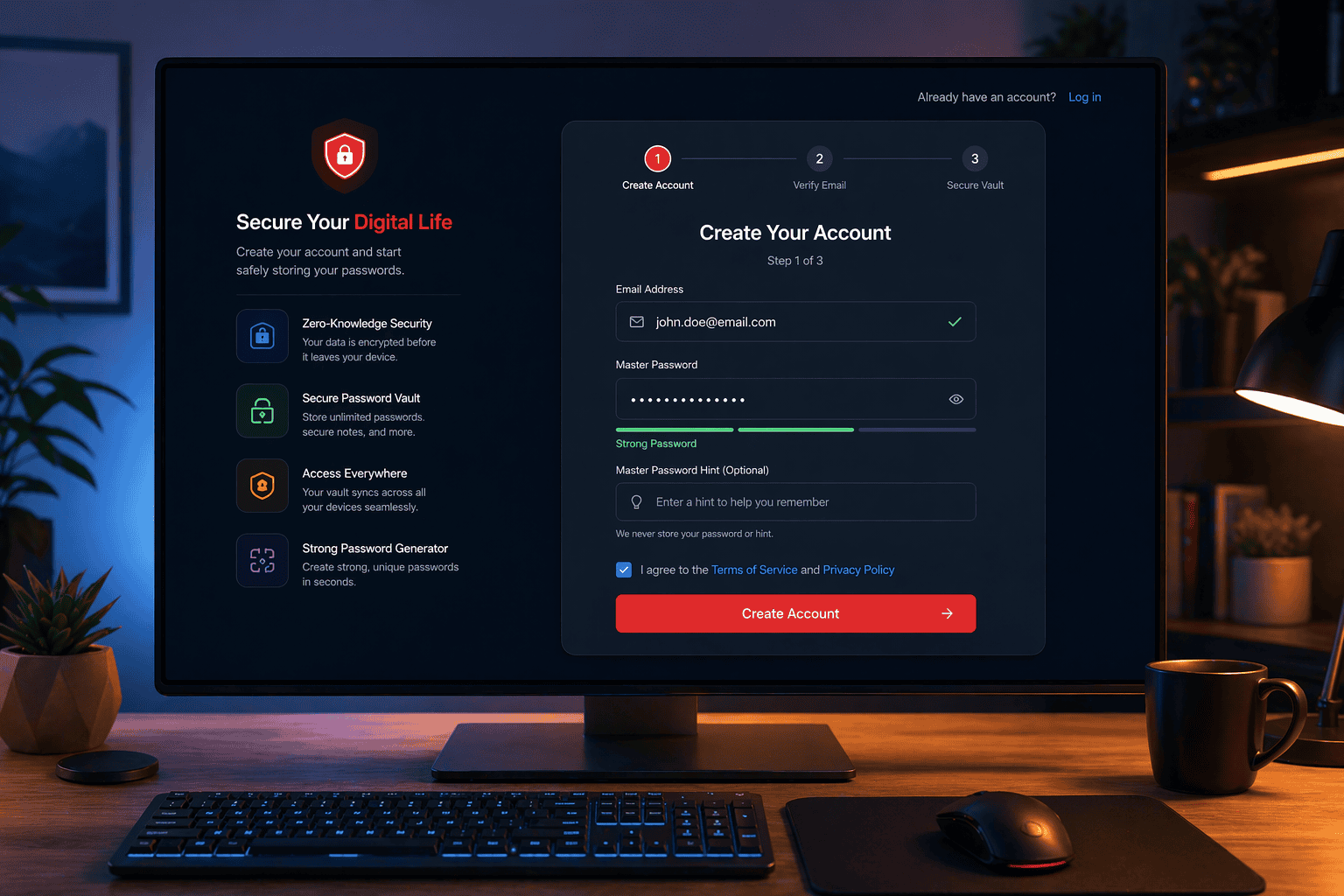
Open the password manager and create an account. You will need to provide an email address and create a master password. This master password is crucial as it will be the key to accessing all your stored passwords. Make sure your internet connection is active to verify your email and set up the account.
Step 4: Import Existing Passwords
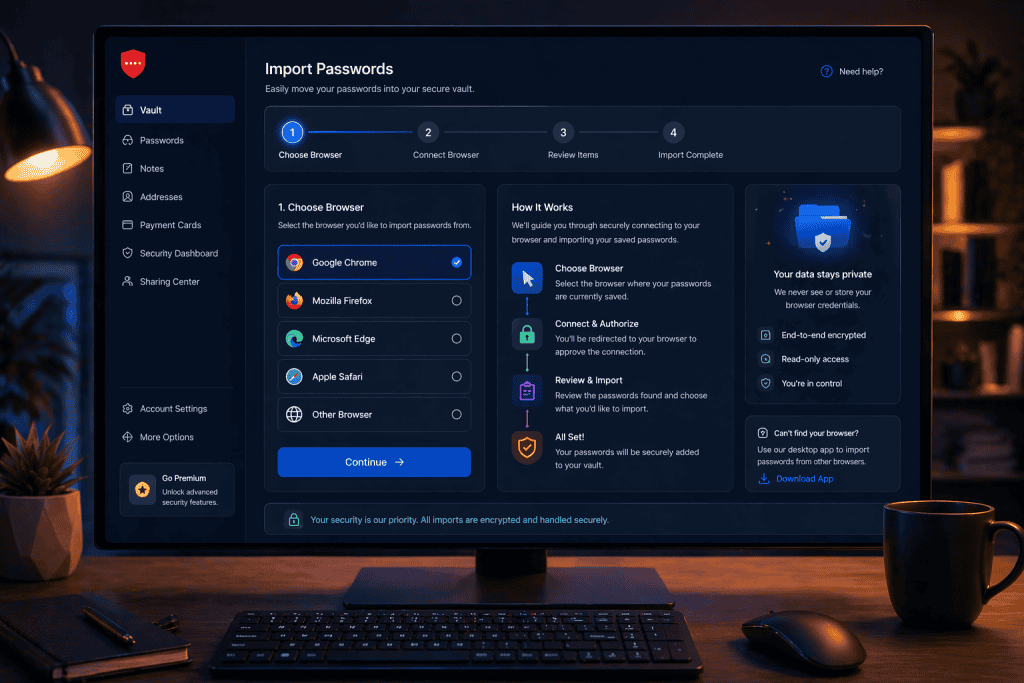
Most password managers allow you to import passwords from browsers or other password managers. Follow the instructions to import your existing passwords into the new manager. You might need to be connected to the internet to complete the import process seamlessly.
Step 5: Add New Passwords
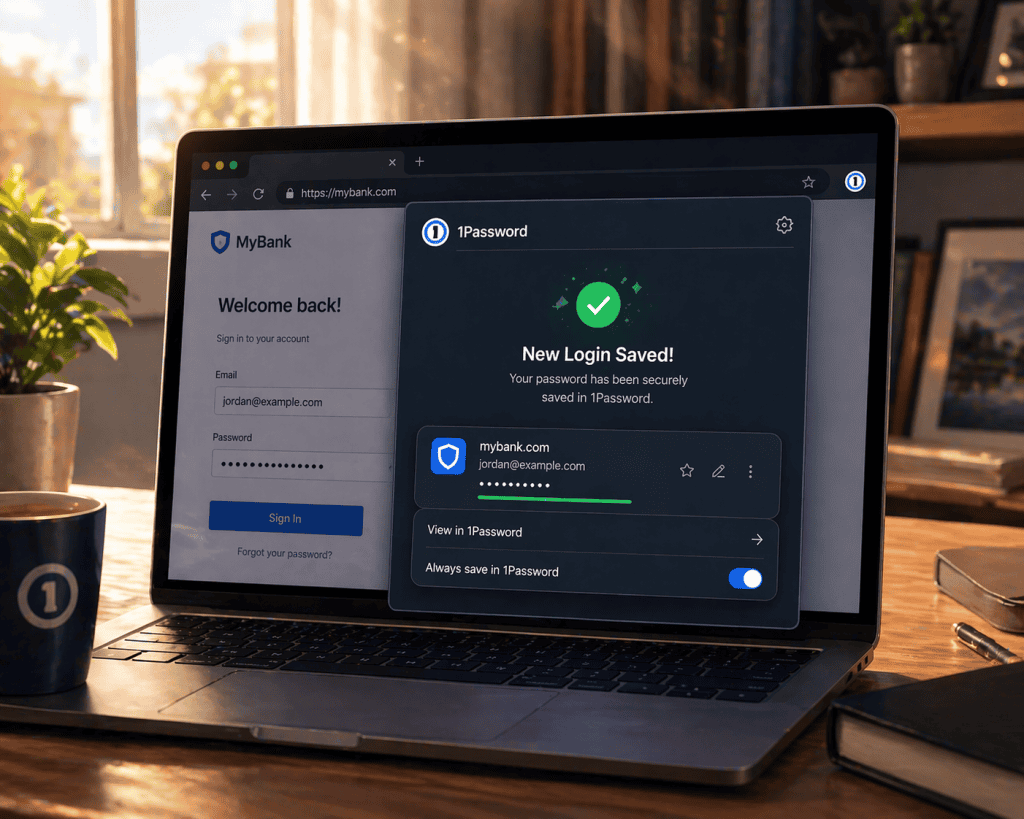
To add a new password, log into a site and let the password manager prompt you to save the password. Alternatively, you can manually add login details by entering the website URL, username, and password. This can be done offline, but to sync your passwords across devices, ensure your internet connection is active.
Step 6: Enable Two-Factor Authentication (Optional)
For added security, enable two-factor authentication (2FA) on your password manager account. This requires a second form of verification, such as a code sent to your phone, in addition to your master password. An internet connection is necessary to receive verification codes and set up 2FA.
Step 7: Sync Across Devices
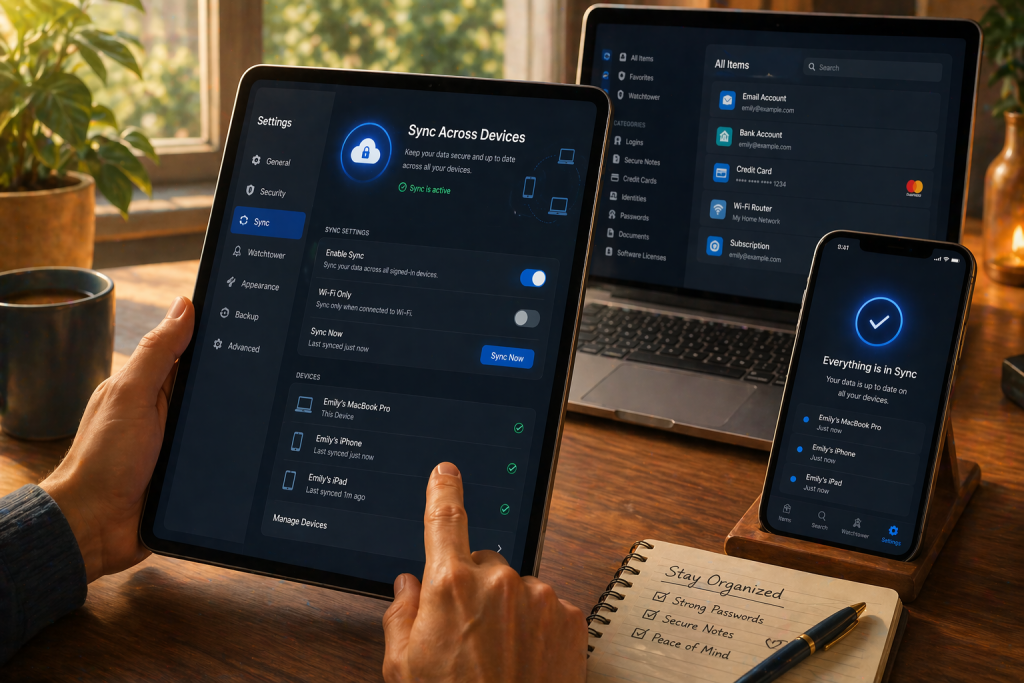
Ensure that your password manager is set to sync across all your devices. This allows you to access your passwords from your smartphone, tablet, or computer seamlessly.
Step 8: Use the Auto-Fill Feature
Take advantage of the auto-fill feature to log into your accounts effortlessly. The password manager will automatically fill in your login details when you visit a website.
Step 9: Regularly Update Passwords
Periodically update your passwords to enhance security. The password manager can generate strong, unique passwords for each of your accounts.
Step 10: Backup Your Data
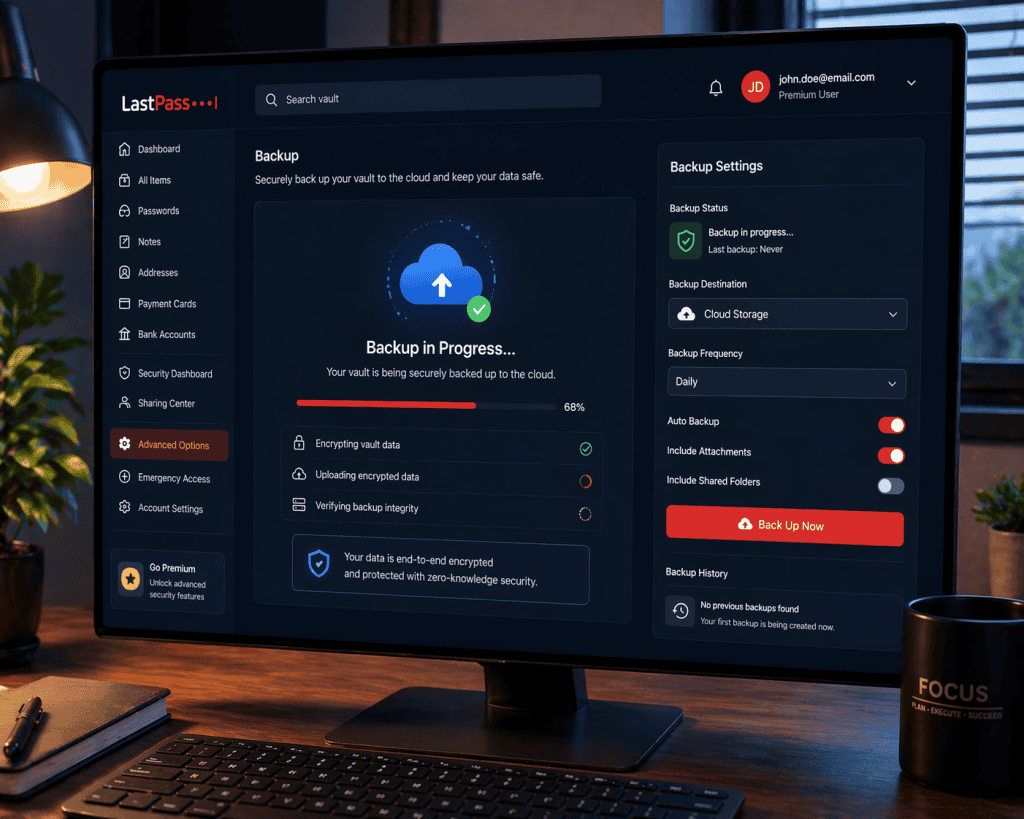
Regularly backup your password database. Most password managers offer cloud storage, but you can also export your passwords to an encrypted file.
Tips and Warnings to Avoid
| Tips | Warnings |
|---|---|
| Use a strong, unique master password. | Do not reuse passwords across accounts. |
| Enable two-factor authentication. | Do not use weak or easy-to-guess passwords. |
| Use the password generator for new logins. | Do not ignore breach or security alerts. |
| Keep your password manager updated. | Do not store your master password in plain text. |
Conclusion
Managing passwords with a password manager is an effective way to enhance your online security. By following these steps, you can ensure that your passwords are securely stored and easily accessible, reducing the risk of security breaches and making your online experience smoother and safer.
FAQ
What is a password manager?
A password manager is a tool that stores and manages your passwords securely. It helps generate strong passwords and automatically fills them in when you log into your accounts.
Is it safe to use a password manager?
Yes, using a password manager is safe. It encrypts your passwords and stores them securely. However, it’s crucial to use a strong master password and enable two-factor authentication for added security.
Can I access my passwords on multiple devices?
Yes, most password managers sync across multiple devices. You can access your passwords on your smartphone, tablet, and computer, ensuring you have your login details wherever you go.
Resources
- Techopedia. How to Manage Passwords with a Password Manager.
- IT Glue. Password Management.
- Washington Post. Passwords Tips & Privacy.
- 4Walls. How to Use a Password Manager: A Comprehensive Guide.
- IronVest. How Do Password Managers Work?.